
In these days, the fast-growing world of digital business cannot do without seamless communication between remote people. It does not matter whether your work team lives on different continents or uses a mixed office environment; having a video conferencing tool is mandatory for productivity, collaboration, and teamwork.
Here comes izeeconf from Apizee. It is a video collaboration tool for enterprise-level video meetings, improved remote assistance, and more efficient conference organization.
This guide will be your full izeeconf experience: features of izeeconf, how to install it, how to use izeeconf to host conferences, security benefits, and the most common questions.
What is Izeeconf?
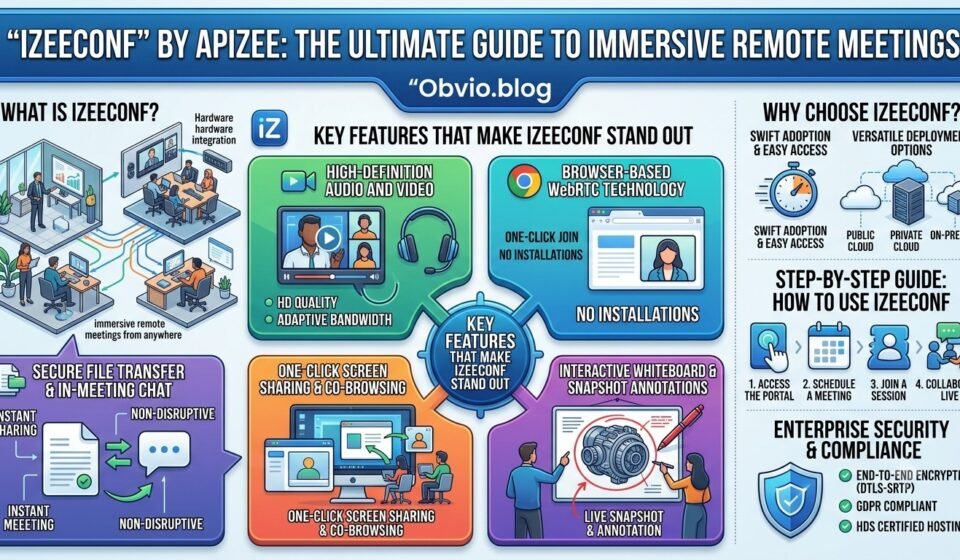
With izeeconf app, you can have easy access to immersive remote conferences from anywhere in the world: from a conference room, from your office or from any other place. Based on the WebRTC (Web Real-Time Communication) technology via the Apizee solution, it enables the delivery of HD audio and video straight to your browser or application without any complicated installations.
No matter if you need to organize internal team alignment, remote client consulting or connect physical conference rooms using hardware integration, izeeconf will help you do that!
Key Features That Make Izeeconf Stand Out
The application has been equipped with a set of tools that helps make the online meetings as productive and comfortable as real-world meetings can be.
                 +-------------------------------------------------+
                 |              IZEECONF CORE FEATURES             |
                 +-------------------------------------------------+
                                          |
        +------------------+--------------+--------------+------------------+
        |                  |                             |                  |
+---------------+  +---------------+             +---------------+  +---------------+
|   HD Video    |  | Seamless Screen|             | Instant File  |  | Live Snapshot |
|  & Audio      |  | & Co-Browsing |             | Sharing       |  | & Annotation  |
+---------------+  +---------------+             +---------------+  +---------------+
1. High-Definition Audio and Video
High-quality visuals and audio are essential for any online communication. The application will automatically adjust the resolution of the stream depending on the Internet connection.
2. Browser-Based WebRTC Technology
A user can log in to the meeting just by one click. There is no need for any additional software, administrative permissions, or extensions to the browser required.
3. One-Click Screen Sharing & Co-Browsing
A presenter can present his/her entire desktop screen or selected windows or browser tabs. The ability to co-browse enables users to browse documents/web sites simultaneously.
4. Interactive Whiteboard & Snapshot Annotations
Cooperate visually during meetings. Users may lock a live video stream, take a photo in high resolution and annotate specific sections directly on the screen. This is particularly helpful for technical issues, product reviews, and site inspection from a distance.
5. Secure File Transfer and In-Meeting Chat
Share agenda documents, slides, or media files immediately during a live session. There is also an embedded text chat where users may share relevant information non-disruptively.
6. Comprehensive Meeting Scheduling Interface
Arrange meetings, maintain invitees list, organize recurring meetings and even insert meeting link directly into calendar invites using Apizee’s dashboard.
Why Choose Apizee’s Izeeconf?
Choosing the correct video conferencing tool needs to consider aspects such as convenience, versatility, and security. Below is the comparison for this platform based on the key aspects of business:
Swift Adoption and Easy Access
Many conventional video conferencing solutions often need updates in form of software installations that tend to make the meetings begin late. Apizee being a native component of the modern browser (Chrome, Firefox, Safari, Edge) allows immediate participation from laptops, tablets, and mobiles.
Versatile Deployment Options
Various organizations have diverse compliance and infrastructure requirements. Deployment options available with Apizee include:
- Public Cloud: Instant deployment without the hassle of managing servers.
- Private Cloud: Cloud instances custom-made to meet business needs.
- On-Premise: Deployment within the corporate data center for complete control over network traffic and data.
Technical Specifications & Compatibility Matrix
In order to achieve the best performance in video calls, take note of the system and browser specifications indicated below:
| Platform / Operating System | Supported Browsers | Minimum Hardware Requirements | Recommended Specifications |
| Windows (7, 8, 10, 11) | Chrome 45+, Firefox 46+, Edge 79+, Opera 35+ | Intel Core 2 Duo, 4GB RAM | Intel i5 Quad-Core, 8GB RAM |
| macOS (10.7+) | Safari 11+, Chrome 45+, Firefox 46+ | Dual-Core CPU, 4GB RAM | Quad-Core CPU, 8GB RAM |
| iOS / iPadOS (14.0+) | Safari 11.2+, Native Mobile App | iPhone 5 / iPad 1 or newer | iPhone 8 / iPad Air or newer |
| Android (4.4+) | Chrome 59+, Firefox 54+, Samsung Internet 7+ | Dual-core CPU, 3GB RAM | Octa-core CPU, 6GB RAM |
Network Note: Recommended bandwidth ranges from 300 kbps to 2.4 Mbps per stream depending on video quality (360p, 720p HD, or 1080p Full HD).
Step-by-Step Guide: How to Use Izeeconf
Joining and setting up online meetings will be very easy for you. Here are some guidelines that you can follow.
Step 1: Accessing the Portal
- Open your web browser or use the mobile application.
- Go to the URL of your company’s Apizee meeting portal.
- Sign in using your specific user credentials or single sign-on (SSO).
Step 2: Scheduling a Meeting
- Go to the dashboard and select Schedule a Meeting or New Conference.
- Input the name, date, start time, and duration of the meeting.
- (Optional) Configure security settings for your meeting, such as meeting password, waiting room, or temporary access link.
- Add participants’ emails/phone numbers to send email/text invitation messages.
- Click Save & Send Invitations.
Third Step: Joining an Active Session
- For Hosts: Tap the Start Meeting button from your scheduling dashboard.
- For Guests: Tap the invitation link that was sent to you via email, SMS, or calendar.
- Grant the browser permission to use your microphone and camera when prompted.
Step 4: Collaborating During the Meeting
- Share Screen: Tap on the screen icon from the control bar to share either your desktop or your application window.
- Annotate: Tap on the snapshot icon to capture the video frame, annotate it and send the annotation across to the meeting participants.
- Send Files: Simply drag and drop files in the chat window to download them instantly.
Enterprise Security and Compliance
The main features of corporate video solutions include privacy of data and secure communication. European technology standards support the platform for maximum privacy protection:
- End-to-End Encryption: End-to-end encryption of audio, video, and data flows is performed via WebRTC protocol (DTLS-SRTP).
- GDPR Compliant: Complete GDPR guideline compliant.
- HDS Certified Hosting Environment: It allows HDS-certified hosting of healthcare data, providing safe telehealth and medical consultation.
- Waiting Room Moderation and Single-Use Access Link: Access control features.
Industry Use Cases
Organizations in many industries are using video technology to increase productivity and eliminate operational trips:
- Technical Field Help: On-the-ground technical workers can broadcast the feed of their cameras to technical experts at the office, make immediate screenshots, and note problems with machines to solve them on the spot.
- Visual Inspections of Claims for Insurance Purposes: The adjuster can do a visual inspection of the damage done remotely along with the policyholder.
- Healthcare & Telemedicine: Doctors provide secure, HDS-compliant virtual consultations to their patients.
- Corporate & Hybrid Workspaces: Whiteboard-compatible meeting rooms offer hybrid workers the ability to work on the whiteboard and discuss documents in board meetings.
Frequently Asked Questions (FAQs)
Do meeting participants need to install software or register an account?
NO. Participants can simply connect using the invite URL from their web browser without installing or registering anything on their end.
Can I run meetings from dedicated conference room hardware?
YES. This solution has been designed to work perfectly well with a dedicated conference room configuration with its own cameras, mics, and display screens.
Is screen sharing supported on mobile devices?
The participants using desktop or laptop can share their screens. Users using iOS and Android phones can view the shared screens and actively take part in audio or video calling, chat, and file exchange activities.
How does snapshot annotation work?
While taking a live call, an authorized user can simply click on the snapshot button and capture a frame of the video being taken. Thereafter, visual tools enable the user to draw arrows or highlight the portion or even add texts to the frame.
Conclusion
It is important to have a reliable video collaboration software in order to be able to maintain communication between hybrid and remote teams. Thanks to its WebRTC technology, HD video, interactive whiteboard, and real-time document sharing features, Apizee can provide a versatile environment that can fit any business purpose. Whether it is about organizing daily team meetings or supporting field technicians, it will be a perfect choice for you.