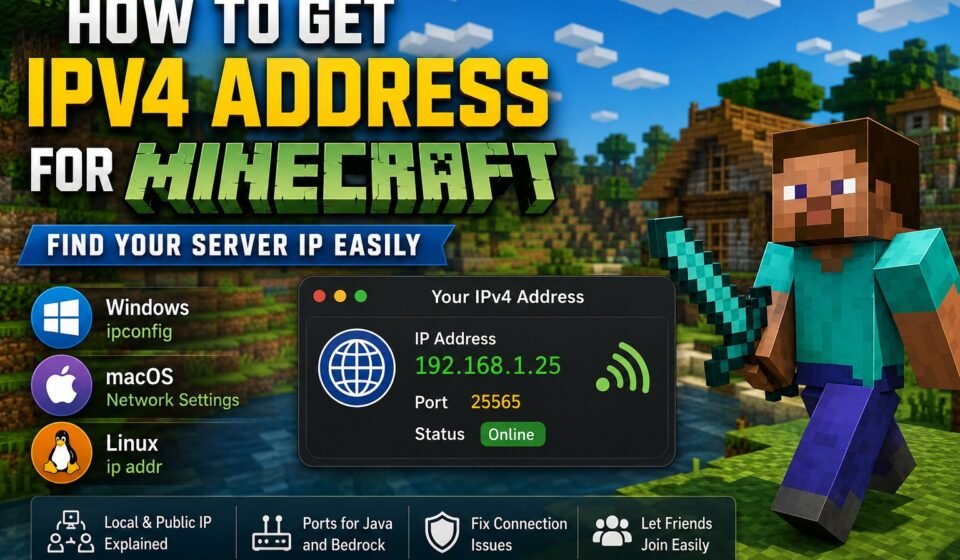

If you want to play Minecraft with friends, host your own server, or allow other players to connect to your game, you may need to know your IPv4 address. However, finding the correct address can be confusing because Minecraft can use different types of IP addresses depending on whether you are playing on a local network or hosting a server online.
If you are wondering how to get IPv4 address for Minecraft, the easiest method on Windows is to open Command Prompt and run the ipconfig command. Your local IPv4 address will appear under the active Wi-Fi or Ethernet connection.
But finding the address is only the first step. You also need to know whether you should give other players your local IPv4 address or your public IP address, which port your Minecraft server uses, and whether you are playing Java Edition or Bedrock Edition.
This guide explains everything you need to know about finding and using an IPv4 address for Minecraft. For official information about Minecraft and its editions, visit the official Minecraft website.
Quick Answer
To get your IPv4 address for Minecraft on Windows, press Windows + R, type cmd, and press Enter. Then type ipconfig and press Enter. Find the active Wi-Fi or Ethernet connection and look for IPv4 Address. This is your local IPv4 address, such as 192.168.1.25. Use your local IPv4 for Minecraft players on the same network. If friends are connecting from outside your network, you will generally need your public IP address and the correct Minecraft server port.
What Is an IPv4 Address in Minecraft?
An IPv4 address is a numerical address used to identify a device on a network. IPv4 addresses normally look something like this:
192.168.1.25
When you run a Minecraft server on your computer, your computer has an IP address that other devices can use to connect to it.
There are two important types of IP addresses to understand:
- Local or private IP address: Used by devices on the same home or office network.
- Public IP address: Used to identify your network on the internet.
For example, your computer might have a local IPv4 address such as 192.168.1.25, while your router has a public IPv4 address that is visible to the internet.
The correct address depends on who is trying to connect to your Minecraft server.
How to Get IPv4 Address for Minecraft on Windows
If you are using Windows, finding your Minecraft local IP address is straightforward.
Step 1: Open Command Prompt
Press:
Windows + R
A Run window will appear.
Type:
cmd
Then press Enter.
Step 2: Run the IP Configuration Command
In Command Prompt, type:
ipconfig
Press Enter.
Windows will display information about your network connections. Microsoft explains that the ipconfig command displays IPv4 and IPv6 addresses, subnet masks, and default gateways for network adapters.
You may see sections such as:
- Wireless LAN adapter Wi-Fi
- Ethernet adapter Ethernet
- Bluetooth Network Connection
- Other network adapters
Step 3: Find Your IPv4 Address
Look under the network connection you are currently using.
If you are connected through Wi-Fi, look under Wireless LAN adapter Wi-Fi.
If you are using a network cable, look under Ethernet adapter Ethernet.
Find the line labeled:
IPv4 Address
It may look similar to:
IPv4 Address . . . . . . . . . . : 192.168.1.25
That number is your local IPv4 address.
You can use this address when another player is connecting to your Minecraft server from the same local network.
How to Find Your Minecraft Server IP on macOS
Mac users can also find their local IP address without installing additional software.
Open System Settings, then go to Network.
Select your active connection, such as Wi-Fi or Ethernet. The network details should display your IP address.
Depending on your macOS version, you may find it under connection details or TCP/IP settings.
You can also use Terminal.
Open Terminal and enter:
ipconfig getifaddr en0
On many Macs, en0 is the Wi-Fi interface, although the interface name can vary.
The command should return an IPv4 address such as:
192.168.1.25
That is your local IP address.
How to Find Your Minecraft Server IP on Linux
Linux users can find their IPv4 address using the Terminal.
Open Terminal and run:
ip addr
Look for the active network interface and find the IPv4 address listed after inet.
For example:
inet 192.168.1.25/24
In this example, the local IPv4 address is:
192.168.1.25
The exact interface name can vary depending on your Linux distribution and network configuration.
Local IPv4 vs. Public IP for Minecraft
One of the most common mistakes when setting up a Minecraft server is confusing a local IP address with a public IP address.
Understanding the difference is essential.
Local IPv4 Address
A local IPv4 address is used inside your home or private network.
Common private IPv4 ranges include addresses beginning with:
192.168.x.x10.x.x.x172.16.x.xthrough172.31.x.x
For example:
192.168.1.25
If your friend is connected to the same Wi-Fi network, they may be able to connect to your Minecraft server using your local IP.
Public IPv4 Address
Your public IP address identifies your internet connection.
If your friend lives somewhere else and wants to connect to a Minecraft server hosted on your computer, they generally need your public IP address rather than your private 192.168.x.x address.
However, simply giving someone your public IP does not automatically make a Minecraft server accessible from the internet. Your router, firewall, server configuration, and internet provider can all affect connectivity.
How to Find Your Public IP Address for Minecraft
If you need your public IP address, you can search online for:
What is my IP
A reputable IP-checking website will display the public IP address associated with your internet connection.
You can also check your router’s internet or WAN settings.
Your public IPv4 address may look like:
203.0.113.25
The address above is only an example.
Do not confuse your public IP with your local Minecraft server IP. A private address such as 192.168.1.25 normally identifies your computer only inside your local network.
What IP Address Should You Give Your Minecraft Friends?
The answer depends on where your friends are located.
Friends on the Same Wi-Fi
If everyone is connected to the same local network, give them your computer’s local IPv4 address.
For example:
192.168.1.25
If your Minecraft server uses a specific port, the complete address may be entered as:
192.168.1.25:25565
Friends Connecting Over the Internet
If your friends are outside your home network, they generally need your public IP address and the correct server port.
For example:
203.0.113.25:25565
Again, the address shown here is only an example.
You will also need to configure the network correctly, which may involve port forwarding and firewall rules.
How to Use Your IPv4 Address for Minecraft LAN
Minecraft LAN games are designed for players connected to the same local network.
If you are playing on the same Wi-Fi network as your friends, you may not need to configure your router for internet access.
After opening your Minecraft world to LAN, other players on the same network can look for the available LAN game.
If they need to enter an address manually, your local IPv4 address may be useful.
For example:
192.168.1.25
The exact process can vary depending on your Minecraft edition and network configuration.
Minecraft Java Edition IP Address and Port
Minecraft Java Edition commonly uses 25565 as the default server port. Minecraft’s official documentation provides a comparison of Java and Bedrock Edition and explains their supported platforms and multiplayer features.
If your local IPv4 address is:
192.168.1.25
and the server is running on the default Java port, the connection information can look like:
192.168.1.25:25565
For an internet connection, it could look like:
PUBLIC-IP:25565
However, the server’s configured port always takes priority. If you are setting up your own server, you can also get the official server software from the Minecraft server download page. If you changed the port in your server configuration, players need to use the new port.
This is why knowing the Minecraft server IP alone may not be enough.
Minecraft Bedrock Edition IP Address and Port
Minecraft Bedrock Edition uses different networking conventions from Java Edition.
A commonly used Bedrock server port is 19132, although the actual port depends on the server configuration.
For example, a local Bedrock server might use:
192.168.1.25:19132
When connecting over the internet, players may need your public IP together with the configured Bedrock server port.
Because Java and Bedrock are separate editions with different server implementations, you should always check which edition your server and players are using before troubleshooting an IP connection.
What Is 127.0.0.1 in Minecraft?
You may also see an address called:
127.0.0.1
This is the IPv4 loopback address.
It refers back to the same computer.
If you are hosting a Minecraft server on your own computer and want to connect to that server from the same machine, localhost or 127.0.0.1 can sometimes be used.
For example:
127.0.0.1:25565
This is different from your local network IPv4 address.
Your other devices generally should not use 127.0.0.1 to connect to your computer because that address refers to the device making the connection, not your gaming PC.
How to Connect to a Minecraft Server Using an IPv4 Address
Once you have the correct IP address, connecting is usually simple.
For Minecraft Java Edition:
- Open Minecraft.
- Select Multiplayer.
- Choose Add Server or Direct Connection.
- Enter the Minecraft server address.
- Include the port if the server uses a non-default port.
- Connect to the server.
For example:
192.168.1.25:25565
For Bedrock Edition, the available server options depend on the version and server type you are using. You may need to enter the server address and port separately.
Always use the IP address belonging to the network where the server is actually running.
Why Can’t My Friend Connect to My Minecraft Server?
Finding the correct IPv4 address does not guarantee that a server will be reachable.
If your friend cannot connect, check the following issues.
1. You Are Giving Them Your Local IP
If your friend is outside your home network, an address such as:
192.168.1.25
usually will not work from the public internet.
You may need to use your public IP and configure your network appropriately.
2. Port Forwarding Is Not Configured
When you host a Minecraft server on your own computer, your router may block incoming connections.
Port forwarding tells the router where to send incoming traffic.
For a typical Java server, the default port is:
25565
For Bedrock, a commonly used default server port is:
19132
The exact configuration depends on your server and network.
3. Windows Firewall Is Blocking Minecraft
Your computer’s firewall can prevent other devices from reaching the server.
Make sure Java, Minecraft Server, or the appropriate server application is allowed through the firewall where necessary.
Avoid disabling your firewall entirely just to solve a connection problem. It is better to create an appropriate firewall rule.
4. The Minecraft Server Is Not Running
Make sure the server application is actually running before asking someone else to connect.
You should also check the server console for errors.
5. Your IP Address Changed
Many home internet connections use dynamic IP addresses.
Your local IPv4 address can also change when your router assigns a different address to your computer.
If your server suddenly stops being reachable, check the current IPv4 address again.
6. Java and Bedrock Are Different
Make sure both players are using compatible Minecraft editions.
A Java Edition client cannot simply connect to every Bedrock server, and vice versa. Special software or server configurations may be required for cross-edition play.
7. Your ISP Uses CGNAT
Some internet providers use Carrier-Grade NAT, commonly called CGNAT.
With CGNAT, traditional port forwarding may not work because your router does not have a directly reachable public IPv4 address.
If you have configured port forwarding correctly but your Minecraft server still cannot be reached from outside your network, CGNAT could be one possible explanation.
You may need to contact your internet provider or use an alternative hosting/networking solution.
Minecraft IPv4 Address Examples
Here are a few examples to make the different addresses easier to understand.
Local IPv4
192.168.1.25
Used for communication within your local network.
Loopback Address
127.0.0.1
Used to refer to the same computer.
Java Minecraft Server
192.168.1.25:25565
An example of a local Minecraft Java server using the common default port.
Bedrock Minecraft Server
192.168.1.25:19132
An example of a local Bedrock server using a commonly used port.
These are examples only. Your actual Minecraft server IP and port will depend on your computer and server configuration.
IPv4 Address vs. Minecraft Server Address
An IPv4 address and a Minecraft server address are related but aren’t always exactly the same thing.
An IPv4 address might be:
192.168.1.25
A Minecraft server address can include both an IP address and a port:
192.168.1.25:25565
A server address can also be a domain name rather than a numerical IP address.
For example:
play.example.com
The domain name can point to a server’s IP address through DNS.
This means that when someone asks for the Minecraft server IP, they may actually be asking for the complete address needed to connect to the server.
Frequently Asked Questions
How do I get an IPv4 address for Minecraft?
On Windows, open Command Prompt and run ipconfig. Find the IPv4 Address under your active Wi-Fi or Ethernet connection. Use that local address for devices on the same network.
What IPv4 address should I use for Minecraft LAN?
For a LAN game, you normally use the host computer’s local IPv4 address, such as 192.168.1.25. Players need to be connected to the same local network.
What IP do I give my Minecraft friends?
If your friends are on the same Wi-Fi network, your local IPv4 address may be sufficient. If they are connecting over the internet to a self hosted server, they generally need your public IP and the appropriate server port.
Is Minecraft server IP the same as IPv4?
Not always. An IPv4 address is a numerical network address. A Minecraft server address can include an IP address and port, or it can be a domain name.
How do I find my Minecraft server IP on Windows?
Open Command Prompt, type ipconfig, and find the IPv4 Address listed under the active network adapter.
What is the default Minecraft Java server port?
Minecraft Java servers commonly use port 25565 by default. Your server configuration may use a different port.
What is the Minecraft Bedrock server port?
Bedrock commonly uses port 19132, but the actual server configuration determines which port players should use.
Can I use 127.0.0.1 for Minecraft?
Yes, when connecting to a Minecraft server running on the same computer, 127.0.0.1 or localhost can be useful. It generally is not the address you give another computer on your network.
Why does my Minecraft IP not work?
Possible causes include using the wrong IP, incorrect port, firewall restrictions, missing port forwarding, an offline server, a changed IP address, CGNAT, or incompatible Minecraft editions.
Final Thoughts
Knowing how to get IPv4 address for Minecraft is useful whether you are playing a LAN game or hosting your own server. On Windows, the quickest method is to run ipconfig and find the IPv4 address associated with your active network connection.
The most important thing is understanding which IP address you actually need. A local IPv4 address such as 192.168.1.25 is generally used for connections within the same network, while players connecting from outside your network may need your public IP address and the correct Minecraft server port.
Java Edition commonly uses port 25565, while Bedrock commonly uses 19132, although server configurations can differ. If other players cannot connect, check the IP address, port, firewall, port forwarding, server status, and whether your internet provider uses CGNAT.
Once you understand the difference between a local IPv4 address, public IP address, server address, and port, setting up Minecraft multiplayer becomes much easier.