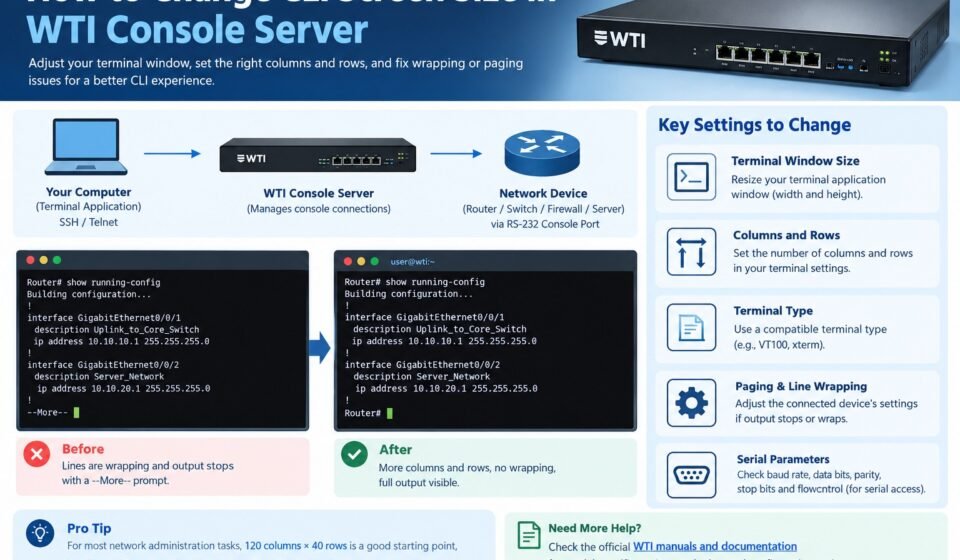

If you manage network equipment through a WTI Console Server, you may sometimes notice that the CLI output does not fit correctly on your screen. Lines may wrap unexpectedly, command output may be cut off, or the console may pause after displaying a certain number of lines.
This often leads administrators to search for how to change CLI screen size in WTI Console Server.
The important thing to understand is that there are several different settings involved in a console session. The physical size of your terminal window, the number of characters displayed per line, the number of lines displayed before paging, and the terminal type can all affect how the CLI looks.
WTI Console Servers are designed for remote and out-of-band management of network equipment. Current WTI DSM models provide CLI and HTML5 web-based management, SSHv2, Telnet, RS-232 console ports, and other management features.
This guide explains the different types of screen-size problems, how to identify the cause, how to adjust your terminal emulator, and what to check on the WTI side.
Quick Answer: How to Change CLI Screen Size in WTI Console Server
If your problem is simply that the CLI window is too small or too large, first change the terminal emulator window size rather than changing the WTI Console Server configuration.
For example, if you are connecting to a WTI Console Server using an SSH or Telnet client:
- Open your terminal application.
- Connect to the WTI Console Server.
- Resize the terminal window to the required width and height.
- Check whether the CLI output now fits correctly.
- If output is still wrapping or stopping unexpectedly, check the terminal type and paging settings.
- If the problem occurs only when accessing a device connected to a WTI serial port, check the terminal settings of the connected device as well.
This distinction is important because the WTI Console Server is acting as a management gateway between your terminal session and the equipment connected to its console ports. WTI describes its console products as providing remote access to console ports for managing routers, switches, and other network infrastructure.
What Does CLI Screen Size Mean?
The phrase “CLI screen size” can mean several different things.
When working with a command-line interface, you normally have at least four related settings:
- Terminal width – the number of characters that can appear on one line.
- Terminal height – the number of lines visible in the terminal window.
- Paging length – how many lines a command displays before waiting for input.
- Terminal type – tells the remote system what type of terminal is being used.
For example, a terminal might be configured as:
Width: 80 columns
Height: 24 rows
This means the terminal can display approximately 80 characters across and 24 lines vertically.
A modern terminal window can be much larger, such as:
Width: 120 columns
Height: 40 rows
However, simply making the terminal window larger does not always mean that the remote system will automatically change its output formatting.
Understanding WTI Console Server CLI
A WTI Console Server provides remote access to serial console ports and network management interfaces.
For example, a WTI DSM Console Server can provide multiple RS-232 console ports and remote management through Ethernet. Current DSM models support technologies including SSHv2, Telnet, CLI management, and HTML5 web-based management.
A typical connection can look like this:
Your Computer
      |
      | SSH / Telnet
      |
      v
WTI Console Server
      |
      | RS-232 Console Port
      |
      v
Router / Switch / Firewall / Server
In this setup, there may actually be two terminal environments involved.
The first is your connection to the WTI Console Server.
The second is the console session you open to the network device connected to the WTI serial port.
This is why changing the size of your computer’s terminal window may not completely solve a screen-formatting problem.
Step 1: Identify Where the Screen-Size Problem Occurs
Before changing any settings, determine where the problem originates.
Ask yourself:
Does the WTI CLI itself look wrong?
For example:
WTI Console Server
Command: __________________
If the WTI management interface itself is wrapping or displaying incorrectly, investigate your terminal emulator and WTI terminal-session configuration.
Or does the connected network device look wrong?
For example:
Router#
Router# show running-config
If the router or switch output is wrapping, stopping, or displaying incorrectly, the problem may be on the network device rather than the WTI Console Server.
This distinction can save a lot of troubleshooting time.
Step 2: Resize Your Terminal Emulator
The easiest solution is to resize the terminal application you are using to connect to the WTI Console Server.
Common SSH and Telnet clients include:
- PuTTY
- Windows Terminal
- SecureCRT
- Tera Term
- Linux terminal applications
- macOS Terminal
Increase the width if long commands or configuration lines are wrapping.
For example, instead of:
------------------------------------------------
interface GigabitEthernet0/0/1 description Uplin
k_to_Core_Switch
------------------------------------------------
a wider terminal might display:
---------------------------------------------------------------------------
interface GigabitEthernet0/0/1 description Uplink_to_Core_Switch
---------------------------------------------------------------------------
A wider terminal is particularly useful when viewing:
- Routing tables
- Interface configurations
- Firewall rules
- VLAN information
- Logs
- System status
- Long configuration commands
Step 3: Check Terminal Width and Height
Terminal dimensions are normally represented by columns and rows.
For example:
| Setting | Meaning |
|---|---|
| 80 columns | 80 characters across |
| 100 columns | 100 characters across |
| 120 columns | 120 characters across |
| 24 rows | 24 lines vertically |
| 40 rows | 40 lines vertically |
| 50 rows | 50 lines vertically |
If you frequently work with network configurations, 100–120 columns can be more comfortable than the traditional 80-column layout.
However, do not assume that every device supports every terminal size. Some older systems or applications may be designed around an 80-column terminal.
Step 4: Check Your Terminal Emulator Settings
If resizing the window does not solve the problem, open the settings of your terminal application.
Look for options such as:
- Terminal size
- Columns
- Rows
- Window size
- Terminal type
- Character encoding
- Line wrapping
- Scrollback
- Local echo
- Auto resize
The exact names depend on the application.
For example, a terminal application may allow you to configure:
Columns: 120
Rows:    40
Save the settings and reconnect to the WTI Console Server.
Step 5: Check the Terminal Type
Terminal type is another important setting.
A remote CLI needs to understand how your terminal handles things such as:
- Cursor movement
- Screen clearing
- Backspace
- Line wrapping
- Function keys
- Escape sequences
- Color output
Common terminal types include:
VT100
VT102
VT220
xterm
xterm-256color
If the terminal type is incorrect, you may experience strange behavior even when the terminal window has the correct dimensions.
Symptoms can include:
- Broken formatting
- Incorrect characters
- Screen clearing problems
- Backspace behaving incorrectly
- Commands appearing on the wrong line
- Menus displaying incorrectly
If you are troubleshooting a WTI CLI session, use the terminal type recommended by the WTI documentation for your particular firmware and model rather than randomly changing it.
WTI maintains model-specific manuals and user guides for its DSM, REM, and CPM product families.
Step 6: Understand Paging
Sometimes what appears to be a screen-size problem is actually a paging problem.
Suppose you execute:
show running-config
The device may display a limited number of lines and then stop:
!
interface GigabitEthernet0/0
 description WAN
 ip address 192.0.2.1 255.255.255.0
!
--More--
The --More-- prompt means that the device is waiting for you to request the next page.
This is not necessarily caused by the WTI Console Server.
The connected network device may have its own terminal-length or paging configuration.
For example, different network operating systems may provide commands for changing or disabling terminal paging.
Always use the command appropriate to the particular device you are managing.
Step 7: Check the Connected Device
If you access a router, switch, firewall, Linux server, or another device through the WTI Console Server, remember that the connected device has its own console settings.
The complete path is:
Terminal Application
        ↓
WTI Console Server
        ↓
Serial Console Port
        ↓
Network Device
If the network device thinks your terminal is 80 columns wide while your terminal window is 120 columns wide, output may not look the way you expect.
Therefore, check both sides of the connection.
Step 8: Check Serial Console Parameters
If you are accessing a device through a WTI serial console port, also verify the serial communication parameters.
Common parameters include:
- Baud rate
- Data bits
- Parity
- Stop bits
- Flow control
For example:
Baud Rate:   9600
Data Bits:   8
Parity:      None
Stop Bits:   1
Flow Control: None
The exact settings must match the connected device.
A mismatch in serial parameters normally causes corrupted or unreadable characters rather than simply changing screen dimensions.
However, it is worth checking because serial communication problems can sometimes look like terminal-formatting problems.
WTI DSM products provide RS-232 serial console ports, and current models support a range of serial speeds depending on the product.
Step 9: Check Line Wrapping
Line wrapping determines what happens when a command or output line reaches the right edge of your terminal.
With wrapping enabled, a long line can continue on the next line.
For example:
show interface description
GigabitEthernet0/0/1  Uplink-to-Core-Switch
GigabitEthernet0/0/2  Connection-to-Server
If the terminal is too narrow, the output may wrap:
GigabitEthernet0/0/1  Uplink-to-Core-
Switch
Increasing the number of columns can make the output easier to read.
However, disabling wrapping is not always the best solution. If the terminal is too narrow, disabling wrapping can cause the end of long lines to disappear from view.
Step 10: Use a Larger Terminal Window for Configuration Work
For normal command-line administration, a larger terminal is often more convenient.
For example:
80 x 24
is a traditional terminal size.
A larger configuration could use:
120 x 40
or:
132 x 50
The best size depends on:
- Your monitor
- Terminal application
- Network device
- CLI software
- Remote access method
- Application compatibility
Do not change terminal dimensions simply because a larger value is available. Choose a size that works correctly with the equipment you are managing.
WTI Console Server vs. Terminal Emulator
One of the most important concepts is understanding which device controls which setting.
| Component | What it controls |
|---|---|
| Terminal application | Window size, columns, rows, local display |
| WTI Console Server | Console connectivity and session management |
| Serial port configuration | Baud rate and serial communication |
| Connected router/switch | Its own CLI behavior and paging |
| SSH/Telnet client | Session and terminal negotiation |
| Network device CLI | Output formatting and command behavior |
This means there is not necessarily one universal “screen size” command on the WTI Console Server that changes everything.
The correct solution depends on which part of the connection is causing the problem.
Common WTI CLI Screen Problems and Solutions
Problem 1: Lines Are Wrapping
Cause
The terminal is too narrow for the CLI output.
Solution
Increase the terminal width.
Try a wider configuration such as:
120 columns
Then reconnect or refresh the session.
Problem 2: Output Stops After Several Lines
Cause
The connected device is probably using CLI paging.
Solution
Check the connected device’s terminal or paging configuration.
For example, many network operating systems have a command that controls how many lines are displayed before the More prompt appears.
Do not assume that WTI is responsible for the paging behavior.
Problem 3: Characters Look Corrupted
Cause
This is more likely to be a serial communication or terminal-type problem.
Check:
- Baud rate
- Data bits
- Parity
- Stop bits
- Flow control
- Terminal type
Make sure the WTI serial-port configuration matches the device’s console requirements.
Problem 4: The Screen Clears Incorrectly
Cause
The terminal type or escape-sequence handling may not match what the remote system expects.
Solution
Check the terminal type configured in your SSH/Telnet client and use a compatible terminal definition.
Problem 5: The WTI CLI Looks Fine but the Router CLI Does Not
Cause
The problem is probably on the router, switch, firewall, or other device connected to the WTI serial port.
Solution
Check the terminal settings and paging configuration of the connected device.
Can You Change WTI CLI Screen Size From the WTI Configuration?
WTI provides CLI-based configuration for its products, and its documentation explains that many configuration parameters available through the web interface can also be configured through the command-line interface.
However, you should not confuse WTI’s system configuration with the physical size of your local terminal window.
Your terminal application ultimately controls the size of the window you see.
The WTI device manages the console connection and provides access to the attached equipment.
Therefore, if your goal is simply:
“I want more characters and more lines visible in my terminal.”
start with your SSH/Telnet terminal application’s window and terminal-size settings.
If your goal is:
“I want the connected router to display more lines before
--More--.”
then change the paging or terminal-length configuration on that router.
These are two different problems.
Using SSH With a WTI Console Server
SSH is commonly used for secure remote management.
Current WTI DSM console servers support SSHv2 as part of their management and connectivity features.
A typical workflow is:
Administrator
     |
     | SSH
     v
WTI Console Server
     |
     | Console Session
     v
Network Device
Before connecting, configure your SSH client appropriately.
Check:
- Terminal window size
- Terminal type
- Character encoding
- Local echo settings if required
- Scrollback
- Connection protocol
- Authentication
Then connect to the WTI Console Server.
Using Telnet With a WTI Console Server
Some WTI products also support Telnet.
The same basic principle applies.
Your Telnet application has its own terminal characteristics, while the WTI Console Server provides access to the console environment.
If the screen appears too narrow:
- Increase the terminal window width.
- Check the terminal type.
- Check line wrapping.
- Check the connected device’s CLI settings.
- Check paging if output stops unexpectedly.
For production environments, follow your organization’s security policy and prefer secure management protocols where appropriate.
WTI Firmware and CLI Compatibility
Another important consideration is firmware version.
WTI regularly releases software updates for its console products. WTI’s current software page advises administrators to check the device’s software and processor version before installing firmware and to ensure that the update matches the device.
If you are troubleshooting unusual CLI behavior, check:
Device model
Firmware version
Terminal application
Connection method
Connected device
This information makes troubleshooting much easier.
Do not install firmware simply to solve a terminal-window-size problem unless you have identified a firmware-related issue.
How to Troubleshoot WTI Screen Size Problems
Use this checklist when the CLI does not display correctly.
1. Check the terminal window
Make the terminal wider and taller.
2. Check columns and rows
Look for terminal settings such as:
Columns: 120
Rows: 40
3. Check terminal type
Verify that your terminal application is using a compatible terminal type.
4. Check line wrapping
Make sure long CLI lines are handled correctly.
5. Check paging
If the CLI displays --More--, investigate the connected device’s paging settings.
6. Check serial parameters
For serial console connections, verify:
Baud
Data bits
Parity
Stop bits
Flow control
7. Check the connected device
Determine whether the issue occurs only on one router, switch, firewall, or server.
8. Check WTI documentation
Use the manual for your exact WTI model and firmware version.
WTI maintains separate documentation for DSM, REM, and CPM product families, including quick-start guides, user guides, and hardware guides.
Best Terminal Size for WTI Console Server Sessions
There is no single terminal size that is perfect for every environment.
For basic network administration, you can start with:
80 columns × 24 rows
For modern network configuration work, a larger size such as:
120 columns × 40 rows
is often easier to work with.
The important thing is compatibility.
If an older application expects an 80-column terminal, forcing a very wide terminal can produce unusual formatting. Conversely, if you frequently review long configuration lines, an 80-column terminal can cause excessive wrapping.
Choose the terminal dimensions based on the equipment and software you are managing.
Why Screen Size Matters in Network Administration
Correct terminal sizing is more than a cosmetic preference.
A poorly sized terminal can make network troubleshooting harder.
For example, consider this interface output:
Interface       IP Address       Status       Description
Gi0/0/1         10.10.10.1       up           Core uplink
Gi0/0/2         10.10.20.1       up           Server network
Gi0/0/3         10.10.30.1       down         Backup connection
On a narrow terminal, the same information might wrap across multiple lines.
That makes it harder to:
- Compare interfaces
- Read IP addresses
- Identify status
- Review configurations
- Copy commands
- Troubleshoot errors
A properly sized terminal makes CLI administration much easier.
Frequently Asked Questions
Does WTI control my terminal window size?
Not completely. Your terminal emulator normally controls the physical window size and local display. WTI provides the console-management connection between your computer and the equipment.
What is a good terminal size for network CLI work?
A common starting point is 120 columns by 40 rows. However, the correct size depends on the terminal application and the device you are managing.
Why does my CLI show --More--?
This usually indicates that the connected device is using output paging. Check that device’s terminal-length or paging configuration.
Why are my CLI commands wrapping?
The terminal may be too narrow. Increase the number of columns or enlarge the terminal window.
Does changing the WTI window size change the router’s terminal size?
Not necessarily. The WTI Console Server and the connected router can have different terminal behaviors and settings.
Why is the CLI showing strange characters?
Check the terminal type and serial communication settings. Incorrect baud rate, parity, flow control, or terminal emulation can cause display problems.
Can I manage WTI through SSH?
Yes. Current WTI DSM console servers support SSHv2 along with CLI and web-based management.
Where can I find WTI manuals?
WTI provides a dedicated manuals and documentation section containing user guides and hardware guides for its console-server product families.
Final Thoughts
If you are searching for how to change CLI screen size in WTI Console Server, the most important step is to identify what you actually need to change.
If the terminal window itself is too small, resize the terminal application and adjust its column and row settings.
Or if long lines are wrapping, increase the terminal width.
If output stops with a --More-- prompt, check the paging configuration of the connected network device.
If characters are corrupted, investigate the serial settings and terminal type.
And if the WTI Console Server itself behaves differently from your expectations, check the documentation for the exact WTI model and firmware version.
WTI’s console-server products are designed to provide remote and out-of-band access to network infrastructure, so understanding the difference between the local terminal, WTI console session, and attached device is essential for reliable CLI management.