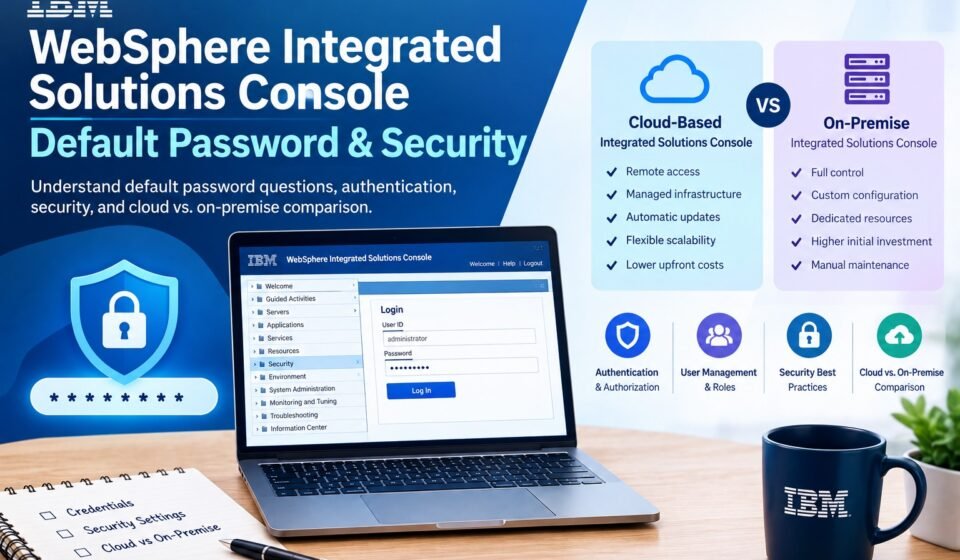
WebSphere Integrated Solutions Console Default Password: Security and Cloud vs. On-Premise

When administrators first install or inherit a WebSphere environment, one of the most common questions is about the WebSphere Integrated Solutions Console default password.
The question sounds simple, but there is an important distinction: WebSphere environments can use different authentication configurations, user registries, profiles, and security settings. Therefore, administrators should not assume that there is one universal password that works across every WebSphere installation.
The same principle applies when comparing traditional on-premise administration with cloud-based environments. The console experience may look similar from an administrator’s perspective, but the infrastructure, authentication, access controls, networking, and operational responsibilities can be very different.
This guide explains how WebSphere console authentication works, what to know about default-password questions, how to troubleshoot login problems, and how cloud-based and on-premise integrated solutions consoles compare.
What Is the WebSphere Integrated Solutions Console?
The WebSphere Integrated Solutions Console is a browser-based administration interface used to manage supported WebSphere environments.
Administrators can use the console to perform tasks such as:
- Managing application servers
- Deploying applications
- Starting and stopping applications
- Configuring resources
- Managing security
- Reviewing system configuration
- Monitoring applications and servers
- Troubleshooting administrative problems
IBM describes the WebSphere administrative console as a graphical interface for managing applications and performing system administration tasks. The console runs in a web browser and can be used for configuration and security-related administration.
If you are unfamiliar with the terminology, our earlier guide explains what is WebSphere Integrated Solutions Console in more detail.
Is There a WebSphere Integrated Solutions Console Default Password?
There is not one universal default password that should be assumed for every WebSphere installation.
The credentials used by the administrative console depend on how the WebSphere environment was configured.
For example, an environment may use:
- A local user registry
- LDAP
- Another external directory service
- Federated or enterprise authentication
- A product-specific identity configuration
- Security settings configured by the organization
IBM documentation shows that WebSphere administrative security can be configured with different authentication mechanisms, including LDAP.
This means that searching for a single “default password” is often the wrong troubleshooting approach.
Instead, determine which authentication mechanism your WebSphere environment uses.
Why Does the Default Password Question Cause Confusion?
The confusion usually comes from several different situations being treated as if they were the same.
For example, someone might be dealing with:
- A new WebSphere installation
- An existing production environment
- A migrated WebSphere profile
- A test environment
- An LDAP-connected environment
- A WebSphere-based IBM product with its own administration layer
These environments can have different authentication configurations.
A username or password mentioned in an installation guide for one product or version should not automatically be assumed to apply to another environment.
How WebSphere Console Authentication Works
When administrative security is enabled, the console authenticates the administrator against the configured security system.
A simplified process looks like this:
Browser → WebSphere Console → Authentication Mechanism → User Registry → Authorization → Console
The user registry contains information used to authenticate users, while authorization determines what an authenticated user is allowed to do. Administrators should review the WebSphere security configuration to understand how authentication, authorization, and user management are handled in their environment.
This distinction is important.
Successfully logging in does not necessarily mean that the account has unrestricted administrative permissions.
An account may be able to access the console while having limited permissions for particular administrative operations.
What Should You Do If You Don’t Know the Password?
If you are administering an existing WebSphere environment and do not know the console password, do not repeatedly guess credentials.
Instead, identify how the environment is configured.
Step 1: Identify the WebSphere Version
First determine which WebSphere Application Server version and edition you are working with.
The correct documentation and available administration methods can depend on the version.
Step 2: Identify the Profile
Determine which WebSphere profile is associated with the administrative console.
A server can contain multiple profiles, and different environments can have different configurations.
Step 3: Determine the Authentication Method
Find out whether the environment uses:
- A local user registry
- LDAP
- Another external directory
- Enterprise authentication
- A product-specific identity provider
This is one of the most important steps because it determines where administrator credentials are managed.
Step 4: Contact the Existing Administrator
For an existing business or production environment, the appropriate administrator or security team should be able to identify the authorized account and authentication mechanism.
Avoid changing security settings simply because a password is unknown.
Step 5: Follow IBM’s Recovery Procedure
If the legitimate administrator has lost access, use the recovery procedure appropriate for the specific WebSphere version and security configuration.
For version-specific troubleshooting, administrators can also consult IBM WebSphere support documentation for administrative-console access and security problems.
Why You Should Not Rely on a Shared Default Password
Using a known or shared administrator password can create unnecessary security risk.
Administrative console credentials can provide access to important application and server configuration.
Depending on permissions, an administrator may be able to:
- Deploy applications
- Stop servers
- Change configurations
- Modify security settings
- Access sensitive configuration information
- Change application resources
For this reason, production environments should use controlled administrative accounts and appropriate security policies.
The objective should not simply be to find a password that works. The objective should be to establish authorized and secure administrative access.
How to Secure the WebSphere Integrated Solutions Console
Once access has been established, administrators should review the security configuration.
Important areas include:
Use Individual Administrator Accounts
Where practical, administrators should use individual accounts rather than sharing one administrator credential.
This makes it easier to determine who performed an administrative action.
Use Strong Authentication
Use authentication appropriate to the organization’s security requirements.
For enterprise environments, centralized identity management can make account management easier and provide consistent security controls.
Use HTTPS
When administrative traffic is transmitted over a network, secure communication should be configured appropriately.
IBM documents both HTTP and HTTPS administrative-console URL patterns, with the actual ports depending on the WebSphere configuration.
Restrict Network Access
The administrative console should not be unnecessarily exposed to the public internet.
Network controls can restrict access to trusted administrative networks, VPN connections, bastion hosts, or other approved paths.
Review Administrative Permissions
Not every account needs unrestricted access.
Use appropriate roles and permissions based on the tasks the administrator actually needs to perform.
WebSphere Integrated Solutions Console Login Problems
If you can open the console but cannot log in, work through the problem systematically. Before troubleshooting credentials, make sure you know how to open WebSphere Integrated Solutions Console.
Incorrect Username or Password
The credentials may simply be incorrect.integrated solutions console
However, before changing anything, determine which user registry is being used.
LDAP Authentication Problems
If the environment uses LDAP, a problem with the directory connection can affect authentication.
Potential causes include:
- LDAP server unavailable
- Incorrect LDAP configuration
- Network connectivity problems
- Invalid credentials
- Certificate problems
- Directory synchronization issues
IBM provides documentation about LDAP global security and how it can be configured with WebSphere Application Server.
Account Permissions
An authenticated user may not have the required WebSphere administrative role.
Check the account’s assigned permissions rather than assuming that successful authentication gives full administrative access.
Security Configuration Changes
If security settings were recently changed, confirm that the changes were applied correctly and that the relevant WebSphere processes have been restarted when required.
What Is an Integrated Solutions Console in a Cloud Environment?
A cloud-based integrated solutions console provides an administrative interface through a cloud-hosted environment rather than requiring the organization to operate all of the underlying infrastructure on its own premises.
The exact architecture depends on the cloud service or software platform.
A cloud environment may provide:
- Browser-based administration
- Centralized identity management
- Remote access
- Managed infrastructure
- Automated updates
- Cloud monitoring
- API-based administration
- Integration with cloud security services
However, “cloud-based” does not automatically mean that every infrastructure or security responsibility disappears.
The responsibilities depend on whether the service is SaaS, PaaS, IaaS, or a managed enterprise application.
How Do Cloud-Based Integrated Solutions Consoles Compare to On-Premise Ones?
The question how do cloud-based integrated solutions consoles compare to on-premise ones can be answered by looking at several areas.
Infrastructure Responsibility
With an on-premise environment, the organization generally owns or manages the underlying servers, storage, networking, operating systems, and application infrastructure.
With a cloud-based environment, some or many of these responsibilities can be handled by the cloud provider or managed-service provider.
The exact division depends on the service model.
Access
An on-premise console may be restricted to an internal network or VPN.
A cloud console is typically designed for secure remote access, although administrators should still use strong authentication and access controls.
Remote accessibility can be useful for distributed teams, but it also makes identity and network security particularly important.
Maintenance
On-premise WebSphere environments require organizations to plan and perform infrastructure maintenance.
This can include:
- Server maintenance
- Operating system updates
- WebSphere updates
- Backup management
- Network maintenance
- Hardware replacement
- Monitoring
Cloud environments can reduce some infrastructure-management responsibilities, depending on the service.
However, the customer may still be responsible for application configuration, identity, data, and other areas.
Scalability
On-premise infrastructure typically requires organizations to plan capacity and acquire additional resources when demand increases.
Cloud platforms can provide more flexible resource allocation, although scalability depends on the specific service architecture and configuration.
Cost Structure
On-premise deployments can involve significant upfront infrastructure costs.
Cloud environments often shift spending toward operational or subscription-based costs.
Neither model has one universal cost structure. The appropriate comparison depends on workload, licensing, infrastructure, staffing, data requirements, and service-level expectations.
Customization
On-premise environments can provide significant control over infrastructure and configuration.
Cloud environments can also provide extensive configuration options, but managed services may impose certain limitations to maintain standardized operations.
Updates
With on-premise infrastructure, administrators generally have greater responsibility for planning updates and maintenance.
Cloud services may provide managed updates or automated infrastructure maintenance.
However, organizations should always review the provider’s maintenance and update policies before assuming that everything is automatically handled.
Cloud vs. On-Premise Comparison
| Area | Cloud-Based Console | On-Premise Console |
|---|---|---|
| Infrastructure | Often provider-managed | Organization-managed |
| Remote access | Commonly available | Often restricted by network controls |
| Hardware | Provider infrastructure | Organization infrastructure |
| Maintenance | Some responsibility may be delegated | Primarily organization responsibility |
| Scalability | Often more flexible | Requires capacity planning |
| Customization | Depends on service | Usually greater infrastructure control |
| Updates | May be provider-managed | Organization manages updates |
| Security | Shared responsibility | Primarily organization-controlled |
| Initial infrastructure | Usually lower hardware investment | Can require significant hardware investment |
| Administration | Centralized web access | Centralized web access is also possible |
The table should be treated as a general comparison. Actual responsibilities depend on the specific cloud service and WebSphere architecture.
Is Cloud Always Better Than On-Premise?
There is no universal answer.
The appropriate architecture depends on factors such as:
- Regulatory requirements
- Data residency
- Existing infrastructure
- Application architecture
- Security requirements
- Internal IT expertise
- Budget
- Scalability requirements
- Integration requirements
- Availability requirements
Some organizations may prefer greater infrastructure control, while others may prioritize managed infrastructure and flexible cloud resources.
The important thing is to compare the operational responsibilities and technical requirements of the actual environment rather than choosing a model based only on the word “cloud.”
IBM Integrated Solutions Console and Enterprise Environments
The phrase IBM integrated solutions console can refer to IBM environments where administrative capabilities are presented through a centralized browser-based console.
However, IBM has multiple products and deployment models, so administrators should always identify the exact IBM product and version before following a configuration guide.
This is especially important when searching for credentials, ports, installation procedures, or security instructions.
A procedure written for one IBM product should not automatically be applied to another product simply because both use similar console terminology.
WebSphere Integrated Solutions Console Security Checklist
Before considering an administrative environment properly secured, review the following:
- Administrative security is configured
- Authorized administrator accounts are identified
- Shared passwords are avoided
- Strong credentials are used
- HTTPS is configured where appropriate
- Administrative access is network-restricted
- User roles are reviewed
- LDAP or other identity systems are correctly configured
- Unnecessary accounts are removed or disabled
- WebSphere and related components are maintained
- Administrative activity is monitored where appropriate
- Recovery procedures are documented
Frequently Asked Questions
What is the WebSphere Integrated Solutions Console default password?
There is no single universal password that should be assumed for every WebSphere installation. The administrator credentials depend on the environment’s configured authentication mechanism and user registry.
Does every WebSphere installation have the same administrator username?
No. The administrator identity depends on how the WebSphere environment and authentication system were configured.
What should I do if I forgot my WebSphere console password?
First identify the configured authentication mechanism and user registry. Then follow the appropriate authorized recovery procedure for your WebSphere version or contact the system administrator responsible for the environment.
Can WebSphere use LDAP authentication?
Yes. WebSphere can be configured to use LDAP as part of its global security configuration. IBM provides documentation for configuring LDAP-based security.
Is the WebSphere console available through a browser?
Yes. IBM documents the administrative console as a browser-based graphical administration interface.
Are cloud-based consoles more secure than on-premise consoles?
Security depends on the architecture, configuration, identity controls, network design, maintenance practices, and responsibilities of the organization and provider. The deployment model alone does not determine security.
Can a cloud-based console replace an on-premise WebSphere console?
That depends on the specific IBM product, deployment model, and migration architecture. A cloud service may provide different management capabilities rather than simply being a one-for-one replacement.
Conclusion
The question of the WebSphere Integrated Solutions Console default password should not be approached as a search for one universal credential.
WebSphere environments can use different authentication mechanisms and user registries, so the correct approach is to identify the actual security configuration and use authorized credentials.
The same principle applies when comparing cloud-based and on-premise administrative consoles. Cloud environments can change how infrastructure, maintenance, remote access, and scalability are handled, while on-premise environments can provide organizations with greater direct control over their infrastructure.
If you are troubleshooting a WebSphere console, start by identifying the WebSphere version, profile, authentication mechanism, and network architecture. From there, use the appropriate IBM documentation for the exact environment rather than applying a generic password or configuration from another installation.


[…] IBM’s documentation also distinguishes between standalone application-server environments and distributed environments where the deployment manager hosts the administrative console. If you are also comparing different administration environments, see our guide to cloud-based and on-premise integrated solutions consoles. […]