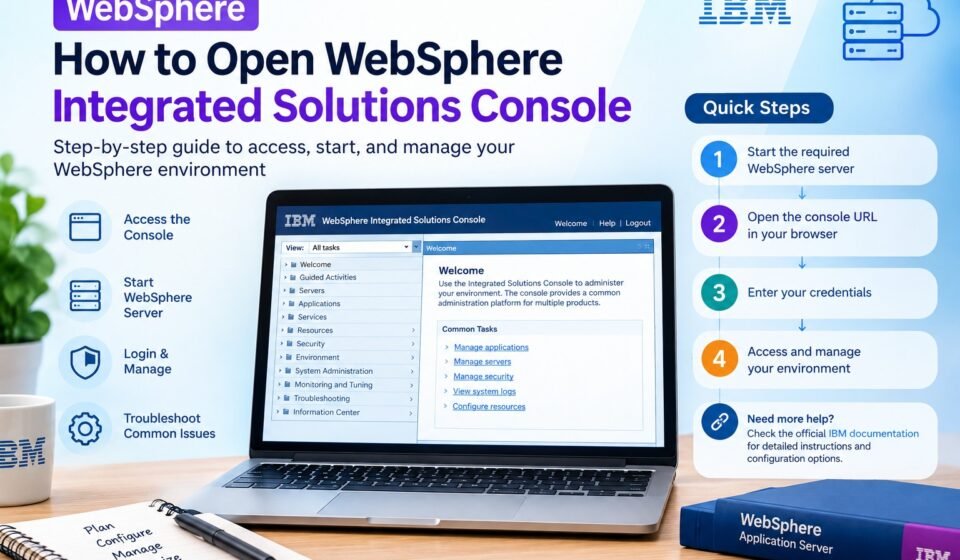

Managing an IBM WebSphere environment often requires access to its browser-based administrative interface. This interface allows administrators to manage application servers, applications, resources, security settings, and other components from a central location.
For new administrators, one of the first questions is usually: how do you actually access the console?
The process is generally straightforward when the correct WebSphere server or deployment manager is running and you know the administrative console port.
This guide explains integrated solutions console WebSphere access, how to open the console in a browser, how to start the required WebSphere server, which URLs and ports are commonly used, and what to check when the console does not load.
What Is the WebSphere Integrated Solutions Console?
The WebSphere Integrated Solutions Console is a browser-based administrative interface associated with IBM WebSphere Application Server environments.
Administrators can use the console to perform many management tasks, including:
- Managing application servers
- Starting and stopping applications
- Deploying applications
- Configuring resources
- Managing security settings
- Reviewing server configurations
- Managing nodes and servers
- Monitoring and troubleshooting the environment
The exact options available depend on the WebSphere edition, version, profile, deployment architecture, and user permissions.
If you are unfamiliar with the terminology, first read our guide explaining what is WebSphere Integrated Solutions Console.
What Do You Need Before Opening the Console?
Before trying to access the console, check a few basic things.
You normally need:
- A working WebSphere Application Server installation
- A configured WebSphere profile
- The appropriate WebSphere server or deployment manager running
- The hostname or IP address of the system
- The administrative console port
- Valid administrative credentials when security is enabled
- Network access to the server
If the WebSphere process hosting the administrative console is not running, entering the console URL in a browser will not normally give you the expected login page.
IBM explains that the administrative console runs in a web browser and that the WebSphere process hosting the console application must be started first.
How to Open WebSphere Integrated Solutions Console
The simplest method is to open a supported web browser and enter the administrative console URL.
A commonly used format is:
http://hostname:9060/ibm/console
Here:
hostnameis the server’s hostname or IP address9060is a commonly used administrative console HTTP port/ibm/consoleis the WebSphere administrative console path
For a secure connection, the URL may look like:
https://hostname:9043/ibm/console
The actual ports can be different in your environment because WebSphere profiles can be configured with different port assignments.
Example
If your WebSphere server is named:
was-server.example.com
you might use:
http://was-server.example.com:9060/ibm/console
or:
https://was-server.example.com:9043/ibm/console
These are examples. Always use the ports assigned to your particular WebSphere profile.
How to Start WebSphere Integrated Solutions Console
A common misunderstanding is that the console itself is normally started as an independent application from the browser.
Instead, the WebSphere process hosting the administrative console needs to be running.
The exact startup procedure depends on your WebSphere environment.
For a traditional WebSphere Application Server profile, administrators can use WebSphere’s server management commands.
On Windows, a typical command is:
startServer.bat server1
On Linux or UNIX-based systems, a typical command is:
./startServer.sh server1
Here, server1 represents the application server name. Your environment may use a different server name.
IBM documentation describes the startServer command as the mechanism used to start a WebSphere Application Server.
Check the Server Status First
Before starting a server, it can be useful to check whether it is already running.
A typical status command is:
serverStatus -all
On UNIX or Linux systems, the command can be run through the appropriate profile’s bin directory, for example:
./serverStatus.sh -all
If the server is already running, you may not need to start it again.
If it is stopped, start the appropriate server and wait for the startup process to complete before opening the console.
Step-by-Step Process for Opening the Console
Here is a simple workflow for beginners.
Step 1: Identify the WebSphere Profile
First determine which WebSphere profile contains the application server you need to administer.
A WebSphere installation can contain multiple profiles, and each profile can have its own configuration.
Make sure you are working with the correct profile before starting or stopping a server.
Step 2: Check the Server Status
Open a command prompt or terminal and navigate to the profile’s bin directory.
Run the appropriate status command.
For example:
serverStatus -all
or on Linux/UNIX:
./serverStatus.sh -all
Check whether the required server is running.
Step 3: Start the Server if Necessary
If the server is stopped, start it using the appropriate command.
For example:
startServer.bat server1
on Windows, or:
./startServer.sh server1
on Linux/UNIX.
Wait for the server to finish starting.
Startup time can vary depending on the machine, installed applications, configuration, and environment.
Step 4: Open a Web Browser
Once the required WebSphere process is running, open your browser.
You can use Chrome, Edge, Firefox, or another browser supported by your WebSphere environment.
Step 5: Enter the Console URL
Enter the appropriate administrative console address.
For example:
http://hostname:9060/ibm/console
If your environment uses secure administration:
https://hostname:9043/ibm/console
The port values are examples and may differ in your installation.
Step 6: Enter Your Credentials
If administrative security is enabled, the console will ask for your user ID and password.
Use an account with the required WebSphere administrative permissions.
Do not assume that every WebSphere installation uses the same username or password.
Step 7: Confirm the Console Loads
After authentication, you should see the WebSphere administrative interface.
The available menus and options depend on your WebSphere installation and permissions.
You can then navigate to the relevant area to manage applications, servers, resources, security, or other configuration settings.
How to Find the WebSphere Console Port
One of the most common problems when opening the console is using the wrong port.
WebSphere installations do not necessarily use the same port numbers.
Common examples include:
- HTTP administrative console port:
9060 - HTTPS administrative console port:
9043
However, these values can be changed during profile creation or later configuration.
Therefore, if 9060 or 9043 does not work, do not automatically assume the WebSphere installation is broken.
Check the port configuration for the relevant profile.
WebSphere Integrated Solutions Console for a Network Deployment Environment
The process can be slightly different when working with WebSphere Network Deployment.
In a distributed WebSphere environment, the administrative console is associated with the deployment manager.
Instead of accessing a standalone application server’s console, administrators may need to make sure that the deployment manager is running.
A simplified architecture looks like this:
Administrator
     |
     v
Web Browser
     |
     v
WebSphere Administrative Console
     |
     v
Deployment Manager
     |
     +---- Node 1
     |      |
     |      +---- Application Server
     |
     +---- Node 2
            |
            +---- Application Server
In this type of environment, starting the correct deployment manager is important before attempting to access the administrative console.
IBM’s documentation also distinguishes between standalone application-server environments and distributed environments where the deployment manager hosts the administrative console. If you are also comparing different administration environments, see our guide to cloud-based and on-premise integrated solutions consoles.
How to Open the Console on a Local WebSphere Server
If WebSphere is installed on your own computer or a local server, you can sometimes access the console using localhost.
For example:
http://localhost:9060/ibm/console
or:
https://localhost:9043/ibm/console
This only works when the WebSphere server and administrative console are running on the local machine and the configured ports match the URL.
If WebSphere is running on another server, replace localhost with the appropriate hostname or IP address.
What If the WebSphere Console Does Not Open?
If the browser cannot connect to the console, work through the problem systematically.
1. Check Whether the Server Is Running
First check the server status.
If the required server is stopped, start it and wait for startup to finish.
2. Verify the Hostname
Make sure the hostname in the URL points to the machine running the relevant WebSphere administrative process.
For a remote environment, test whether the hostname resolves correctly.
3. Verify the Port
Do not assume that every environment uses port 9060 or 9043.
If the administrator configured a different port, the browser must use that port.
4. Check HTTP vs. HTTPS
If administrative security is configured for HTTPS, try the secure URL rather than the HTTP address.
For example:
https://hostname:9043/ibm/console
5. Check Network and Firewall Rules
A firewall can prevent access to the administrative port even when WebSphere itself is running correctly.
Check whether the required port is reachable from the machine where you are opening the browser.
6. Check WebSphere Logs
If the server starts and immediately stops, or if the console application fails to load, check the WebSphere logs for errors.
Logs can provide information about:
- Startup failures
- Port conflicts
- Configuration problems
- Authentication issues
- Application failures
- Resource problems
Avoid changing configuration files randomly before identifying the actual error.
Why Does WebSphere Say the Page Cannot Be Reached?
A browser message such as “This site can’t be reached” does not necessarily mean the console URL is incorrect.
Possible causes include:
- WebSphere is not running
- The wrong hostname was entered
- The wrong port was entered
- A firewall is blocking the connection
- The server is listening only on another interface
- The administrative console application failed to start
- Network connectivity is unavailable
Start with the server status and port configuration before making more complicated changes.
What If You Get a 404 Error?
A 404 response can have several causes.
First verify that you are using the correct console path:
/ibm/console
Also verify the hostname, port, protocol, and WebSphere version.
IBM has documented cases where /admin and /ibm/console behavior can differ depending on the WebSphere version and fix level. Therefore, if an older bookmark uses /admin, checking the appropriate WebSphere documentation for your version can be useful.
What If the Login Page Appears but Authentication Fails?
If the console loads but you cannot sign in, the problem is different from a network or server startup problem.
Check:
- Username
- Password
- User registry configuration
- Security settings
- User permissions
- Whether the account is active
- Whether the environment recently changed its authentication configuration
Do not repeatedly guess passwords, especially on production systems.
If you need information about credentials and default-password questions, that topic deserves a separate guide covering WebSphere security rather than mixing it into the basic console-access procedure.
Common WebSphere Console Access Mistakes
Several mistakes appear frequently when users try to access the WebSphere console.
Using the Wrong Port
Entering:
http://hostname:8080/ibm/console
does not automatically work just because port 8080 is commonly associated with web applications.
The administrative console has its own configured port.
Starting the Wrong Server
A WebSphere installation may contain several servers or profiles.
Starting one server does not necessarily make the administrative console for another profile available.
Using HTTP When HTTPS Is Required
If secure administration is configured, use the appropriate HTTPS URL and secure port.
Forgetting the Console Path
The WebSphere administrative console commonly uses:
/ibm/console
rather than the root URL of the server.
Confusing the Application Port With the Administrative Port
WebSphere applications and the administrative console can use different ports.
For example, the application may be accessible through one port while the administrative console uses another.
Always verify which port belongs to the administrative console.
WebSphere Integrated Solutions Console vs. Application URL
It is useful to understand the difference between an application URL and the administrative console URL.
An application URL might look like:
https://hostname:9443/application
while the administrative console might use:
https://hostname:9043/ibm/console
These are not interchangeable.
The application URL is used by application users, while the administrative console is used by authorized administrators.
Quick Checklist
If you want to open the integrated solutions console WebSphere interface, use this checklist:
- WebSphere Application Server is installed
- The correct profile has been identified
- The required server is running
- The administrative console port is known
- The correct hostname is being used
/ibm/consoleis included in the URL- HTTP or HTTPS is correct
- Firewall rules allow the connection
- Valid administrative credentials are available
- WebSphere logs have been checked if startup fails
Frequently Asked Questions
How do I open WebSphere Integrated Solutions Console?
Start the required WebSphere server or deployment manager, then open a browser and enter the configured administrative console URL, commonly using a path such as /ibm/console.
How do I start WebSphere Integrated Solutions Console?
The console is made available by starting the WebSphere process that hosts the administrative console. For traditional WebSphere environments, the startServer command is commonly used for an application server.
What is the default WebSphere console URL?
A common format is:
http://hostname:9060/ibm/console
For secure access, a common example is:
https://hostname:9043/ibm/console
Your actual ports may be different.
Can I access WebSphere Integrated Solutions Console from another computer?
Yes, provided the WebSphere server is reachable over the network and the relevant administrative port is accessible. Firewall and security rules can affect remote access.
Why is my WebSphere console not opening?
Check whether the correct WebSphere server or deployment manager is running, verify the hostname and administrative port, confirm the /ibm/console path, and check firewall and WebSphere logs.
Does WebSphere use the same port for applications and administration?
Not necessarily. Application traffic and administrative console traffic can use different configured ports.
Conclusion
Opening the WebSphere Integrated Solutions Console becomes much easier once you understand the relationship between the WebSphere profile, server process, administrative port, and browser URL.
The basic process is:
Start the correct WebSphere process → verify the administrative port → open /ibm/console → authenticate → manage the environment.
For many traditional WebSphere installations, 9060 is a commonly used HTTP administrative port and 9043 is a commonly used HTTPS administrative port, but these values should always be verified against the actual environment.
If you are troubleshooting access, start with the basics instead of changing configuration files immediately. Check the server status, port, hostname, protocol, network connectivity, and WebSphere logs in that order.
For the next article in this cluster, the focus should move from access and startup to WebSphere Integrated Solutions Console credentials, default-password questions, security considerations, and cloud-based versus on-premise administration.